Cropping controls which part of an image or video remains visible. Fitting controls how that result sits inside the Telegram sticker or custom emoji canvas.
1. Select the object
Tap the object you want to edit, then open the crop action from the slot toolbar.
2. Adjust the crop
Drag the crop boundaries around the useful content. Keep enough space for motion, outlines and shadows, and preview the result at the small size used in chat.
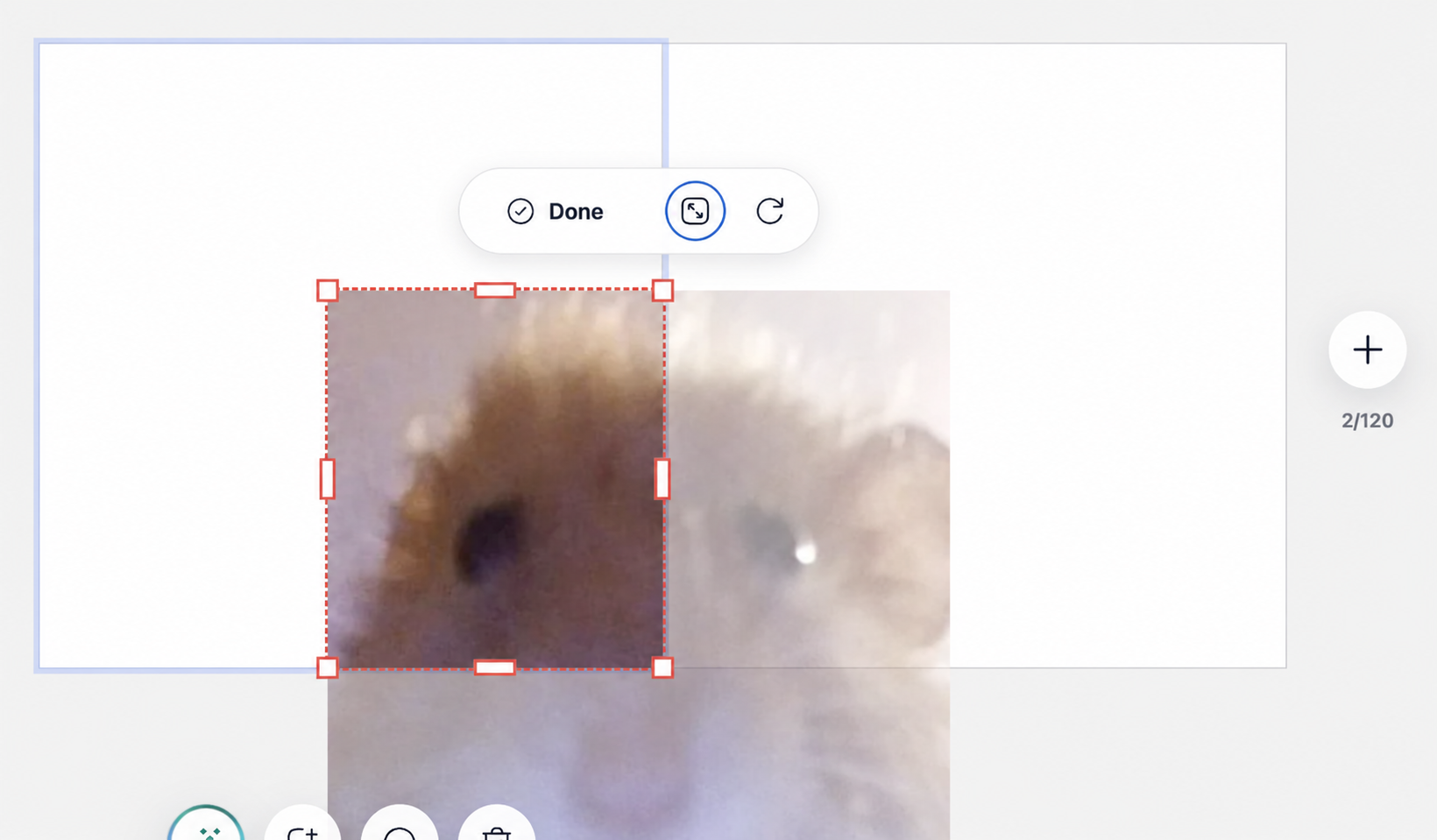
3. Fit or reset when needed
Use fit to make a single sticker fill its slot without clipping. Reset restores the original crop if you want to start over.
Multi-slot emoji banners
When one illustration is split across several custom emoji slots, preserve the same scale and alignment for every fragment. Fitting each fragment independently can distort the combined banner.

Tip:Check the final composition at actual chat size. A crop that looks spacious in the editor can still feel crowded in Telegram.
Next guide
Remove a photo background