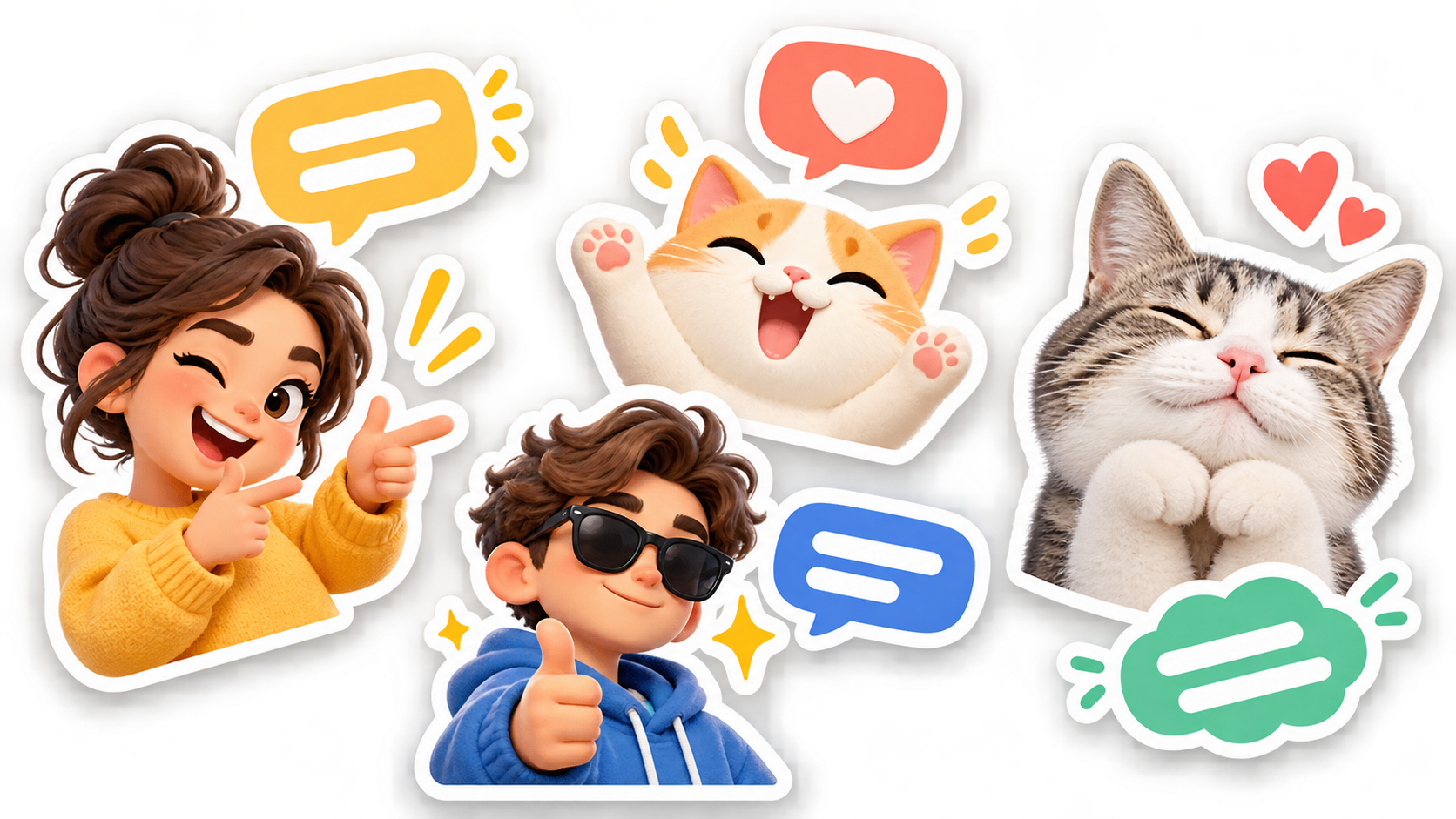
Text makes a sticker more specific to a conversation: add a short reaction, a meme caption or a reply you use often in Telegram.
Create a sticker with text
Add a photo, GIF or existing sticker, format the caption and add a white outline to a static image.
Open StickerPenWhy add text and a white outline
The same photo can communicate different meanings depending on its caption. Text turns an image into a ready-to-send reply for a chat.
A white outline separates the subject from its background, so a photo or existing sticker stays visible on any Telegram theme.
Together, the caption and outline make the sticker readable even in a small preview.
Generate stickers with AI
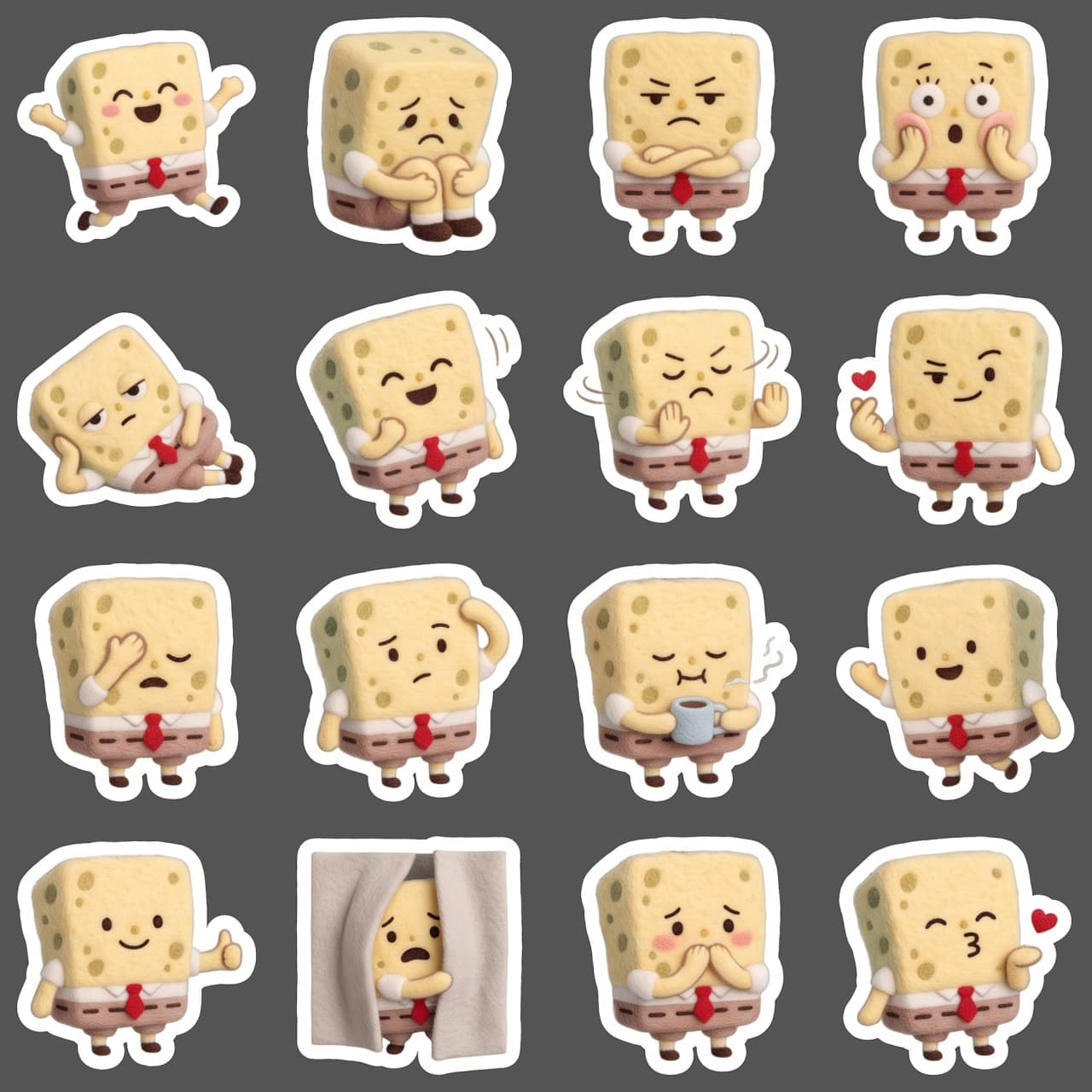
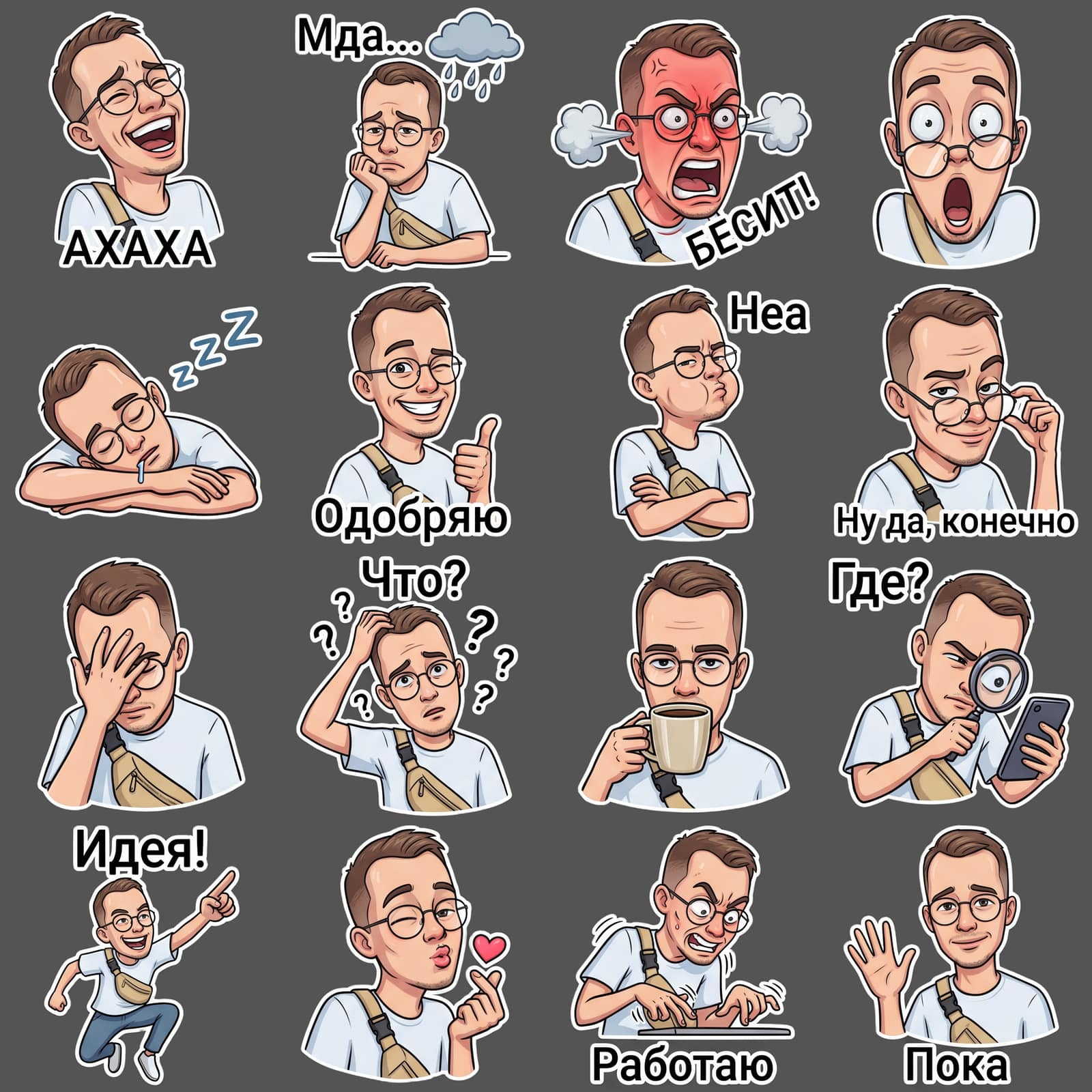
In StickerPen, add several photos, describe the idea for a pack and get a result with 16 stickers. You can include emotions, situations and captions in the prompt.
- Open StickerPen and launch the AI generator.
- Add reference photos. They help keep the character recognizable across different scenes.
- Describe the pack idea. Include the style, situations and emotions you want.
- Add captions to the prompt if the text should be part of the generated images.
- Choose suitable results and continue editing the project.
When the wording must be exact, add the caption in the editor instead. You can then correct, recolor or move it separately.
Add a photo, GIF or existing sticker
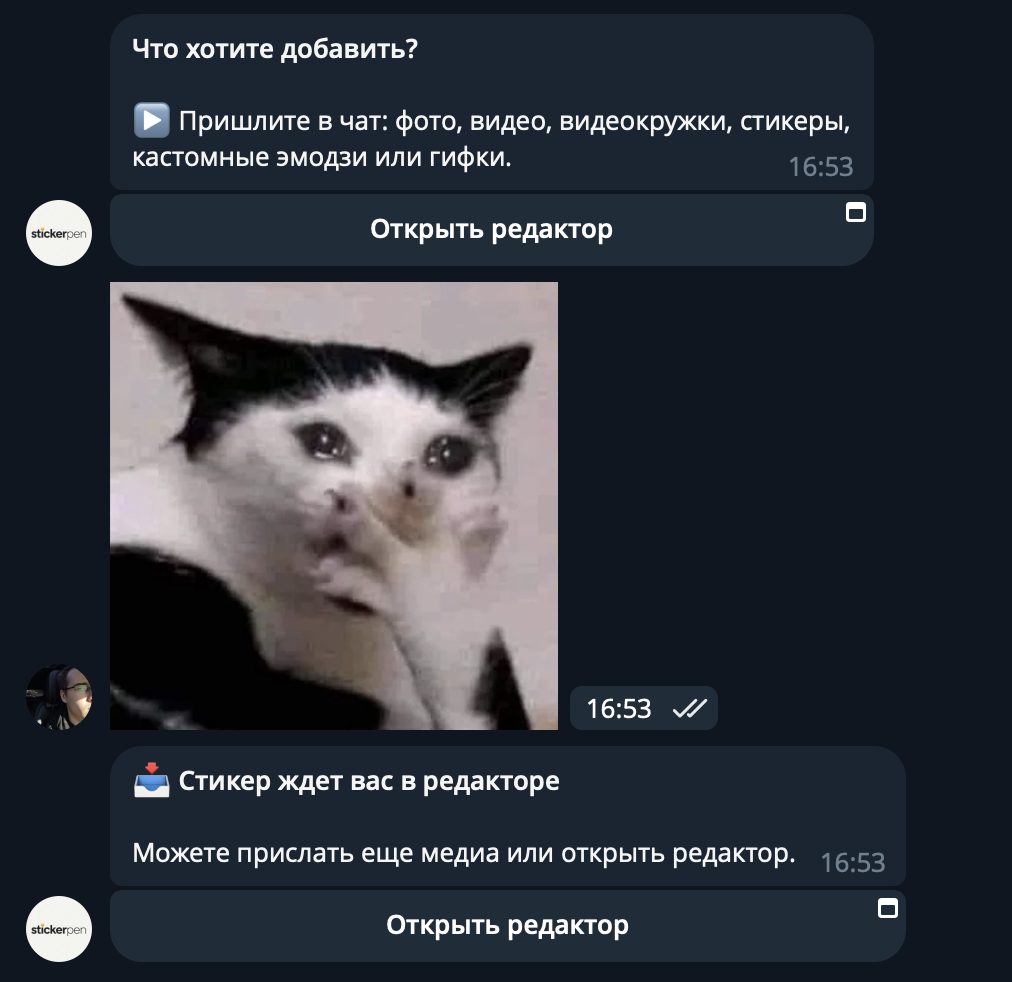
A sticker does not have to start with a photo. Send a photo, GIF, video or existing Telegram sticker to the StickerPen chat, then open it in the editor.
This is useful when you already have an image or meme and only need to add text or keep the pack style consistent.
Add and format the caption
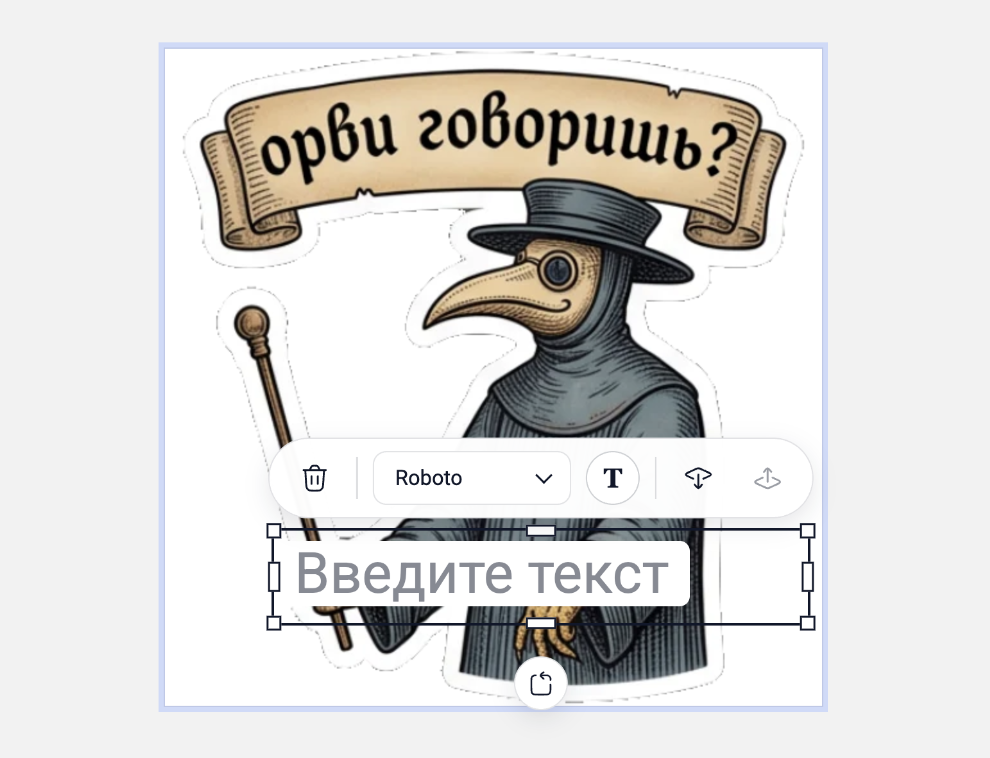
Select the text object on the canvas to open its formatting toolbar.
Choose a font, change the size with zoom or corner handles, set the text color and add a background. This keeps the caption readable over a photo, GIF or existing sticker.
Add a white outline
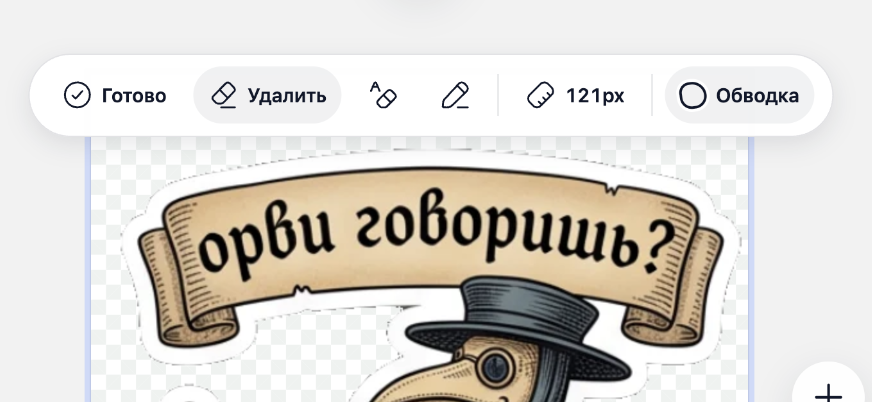
The outline is available for photos and existing static stickers. Background removal is not available for video or GIF, so they cannot receive this outline.
- Select the image in the project.
- Open background removal and choose automatic or manual mode.
- Refine the edges in manual mode if needed.
- Click “Outline” in the manual background-removal toolbar.
Click the button again to remove the outline and compare both versions on the canvas.
Publish the finished pack
After creating the stickers, open the menu in the top-right corner of the project. You can use it to create a Telegram sticker pack or emoji pack.